


You've spent hours crafting your latest campaign. The copy sings, the images are optimised, the links are triple-checked, and every stakeholder has (finally) approved. You send one last test and suddenly… Outlook strikes again. Outlook has plenty of rendering quirks, and most can be fixed or avoided with some creative coding and design. But none are quite as infuriating as the 1px horizontal white line.
(The faint 1px white line in Outlook at 120dpi)
What makes it so hard to fix is how inconsistent it is. We've tested the same HTML and seen the bug in one test but not the next.
Is this still a problem in 2026?
Yes – for now. Microsoft is moving people to the new Outlook for Windows, which became the default for most users from April 2026 and doesn't use the Word rendering engine. But classic Outlook is supported until at least 2029 for Microsoft 365 and perpetual licence users, and plenty of businesses are holding on to it.
Check your own audience data. If a meaningful share of your opens come from classic Outlook on Windows, these fixes still matter – especially heading into peak season.
Watch: pesky white lines in Outlook
Jay covered the bug in his Parcel Unpacked talk – worth a watch if you prefer to see it in action.
Why do the lines appear?
Outlook 2007 was the first version to switch from the Internet Explorer rendering engine to Microsoft Word's. That meant HTML and CSS that Word doesn't handle stopped being supported.
As a print-first editor, Word (and therefore classic Outlook) measures in points (pt) rather than pixels (px). At 96DPI, 1px is 0.75pt.
Testing suggests the bug appears when Outlook converts pixels to points and ends up with a decimal. For example, 18px x 0.75 = 13.5pt – and that leftover 0.5 can show up as a tiny white line. Microsoft knows about the bug, but has been silent on a fix.
Another theory is that it's partly a UI bug. Window size, UI font size, Windows DPI settings and even text zoom can all make it appear – which is no consolation when a client keeps seeing it.
How to prevent it
-
Keep numbers divisible by 4
Make sure font-size, line-height, padding, margin and any other pixel values are divisible by 4.
-
Keep tables and sections short
Split your email into smaller, self-contained modules. The more pixels being added together, the higher the chance of an odd point value – and smaller sections make problems easier to find.
-
Remove borders on tables and images
This removes extra lines, enforced padding and other issues that come with border attributes.
-
Use display: block or vertical-align: middle on images
This stops extra space being added around img elements.
-
Make retina images divisible by 4
When using 2x (retina) images, make sure both the width and height are divisible by 4.
Common causes
Zoom in Outlook desktop – with fixed heights and no relative units, 1px gaps can appear at odd zoom levels. "It was caused by the recipient having 125% zoom" is a sentence we've heard more than once.
Borders – stacked, linked images can get a border in some versions of Outlook. Set border="0" or border-collapse: collapse.
Default image display – images are display: inline by default, so a line break after one in your code is treated as a space and can add a 4px gap. Set images to display: block.
Odd-sized retina images – a 205px image displayed at half size becomes 102.5px, adding a decimal into the mix. Stick to even, ideally divisible-by-4, sizes.
Table background colours – lines often appear inside coloured tables. Put the surrounding colour on the cell closest to the next background colour. For example, this produces a thick black cell around an orange table:
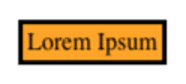
<table bgcolor="#000000">
  <tr>
   <td>
     <table bgcolor="#FFA500">
       <tr>
         <td>Lorem Ipsum</td>
       </tr>
     </table>
   </td>
 </tr>
</table>
While this produces a thinner black outer cell:
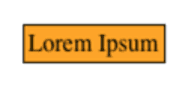
<table>
  <tbody>
    <tr>
      <td bgcolor="#000000">
        <table bgcolor="#FFA500">
          <tbody>
            <tr>
              <td>Lorem Ipsum</td>
            </tr>
          </tbody>
        </table>
      </td>
    </tr>
  </tbody>
</table>
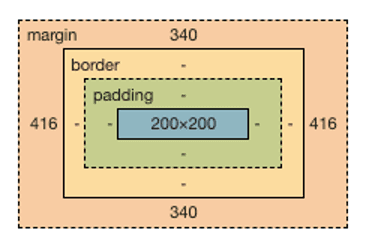
Padding and margin – every layout value is part of the calculation. Work from the outside in: margin > border > padding > element.
Fixes, from quick to drastic
Tried prevention and still seeing lines? Here's every fix we know. One may work on one email and not another, and sometimes you'll need a combination – there are no guarantees.
1. Set a background colour
The gap may be pulling its colour from the html or body tag, so setting html, body {background: #e1e0db;} to match your design can hide it. Or wrap all your content in a table with the right background colour.
2. Add a <br> for Outlook only
Sometimes a break is all it takes to even things out. Use an mso conditional comment so only Outlook on Windows sees it:
<!--[if true]><br> <![endif]-->Tip: to target specific versions, search for Outlook on howtotarget.email. Since Outlook 2016, every classic version reports as mso 16.
3. Nudge padding or margin
Find the padding or margin closest to the bottom of the affected table and add or subtract a pixel at a time.
4. Add margin-bottom
If the line sits at the bottom of a table or element, try margin-bottom: 1px; or wrap the content in a div with margin-bottom: 1px.
5. Add an empty row
An extra row with a 1pt font size and line height can smooth out the maths:
<!--[if true]><tr><td style="font-size: 1pt; line-height:1pt"> </td></tr><![endif]-->6. Nest the offending table
Wrapping content in another table can add the pixels needed to even things out (or make it worse – test it).
7. Set font-size and line-height to zero
For tables made mostly of images, add font-size:0;line-height:0; to the table's inline style. Give text and images inside their own font-size and line-height so alt text doesn't disappear.
8. The drastic one: reset table rows across the email
Use with caution – it can affect a lot of rendering.
<!--[if gt mso 15]>
  <style>
    table {border-collapse: collapse;}
    tr { font-size:0px; line-height:0px; }
  </style>
<![endif]-->
Building it into your design system
In an email design system you can't predict every piece of content, but you can make white lines far less likely:
- Use a base of numbers divisible by 4 for font sizes, spacing and image sizes
- Keep each module as its own self-contained table
- Keep modules short
- Define and test set font and image sizes.
Using a drag-and-drop editor? If you can't type into the HTML, use a keyboard shortcut: Option + Spacebar on Mac, or Ctrl + Shift + Spacebar on PC.
Using MJML? Any of the fixes above can go inside an mj-raw element, which MJML leaves as is.
The end is in sight
Office 2016 and 2019 reached end of support in October 2025, and the new Outlook for Windows – which shares its rendering with Outlook.com – is now the default for most users. 🎉 Until your audience has moved over, though, the Word engine (and its white lines) is still worth coding for.
Keep your numbers divisible by 4, your tables short, and your image heights divisible by 4.
Still seeing lines?
If white lines (or any other Outlook gremlins) keep turning up in your templates, our development team can audit your email templates and design system before peak season. Get in touch with the ActionRocket team.
Resources
How do I get rid of the lines in Outlook emails? – Email on Acid
Mysterious white line in Outlook – Litmus community
Based on our original 2021 guide by Jay Oram (Head of Development, ActionRocket) and Ben Tweedy (EDS Developer, Taxi for Email). Read the original guide here.
See more posts