


This is the second part of our blogs on using video in email - checkout 'why you should use video in email marketing' for all the marketing info. But if you’re looking for code heavy techy stuff - you are in the right place!
Video in email has been something email developers and marketers have been working on for a while - I wrote a blog almost six years ago for Campaign Monitor on the subject. But as email client support has changed and expanded a few updates are needed and some new surprises.
The test
Clients ask us all the time to integrate video in email and if you have read the first post, we often say the experience on a landing page or on a dedicated video site is better for lots of reasons and this was kind of a “We’ve always done it that way” mentality - lots of much smarter people have tackled the problem and came to the same conclusion, so why should we even try?
Well, testing these assumptions is what we do at ActionRocket and given enough time we like to think we can find a way to do anything in email and we have a pretty good track record (looking at you Wordle in Email…)
So we gave ourselves the challenge to get it to work for our experimental weekly newsletter Email Weekly, naturally we made it more complicated than it needed to be - but we showcased the two main ways you can utilise video in email right now.
The 2x techniques
Along with the way everyone has been sending video in email forever (with some improvements), I’m also going to add in a second way - which has some limitations, but I think it will be very useful for anyone thinking about animation and video in emails.
The Video element
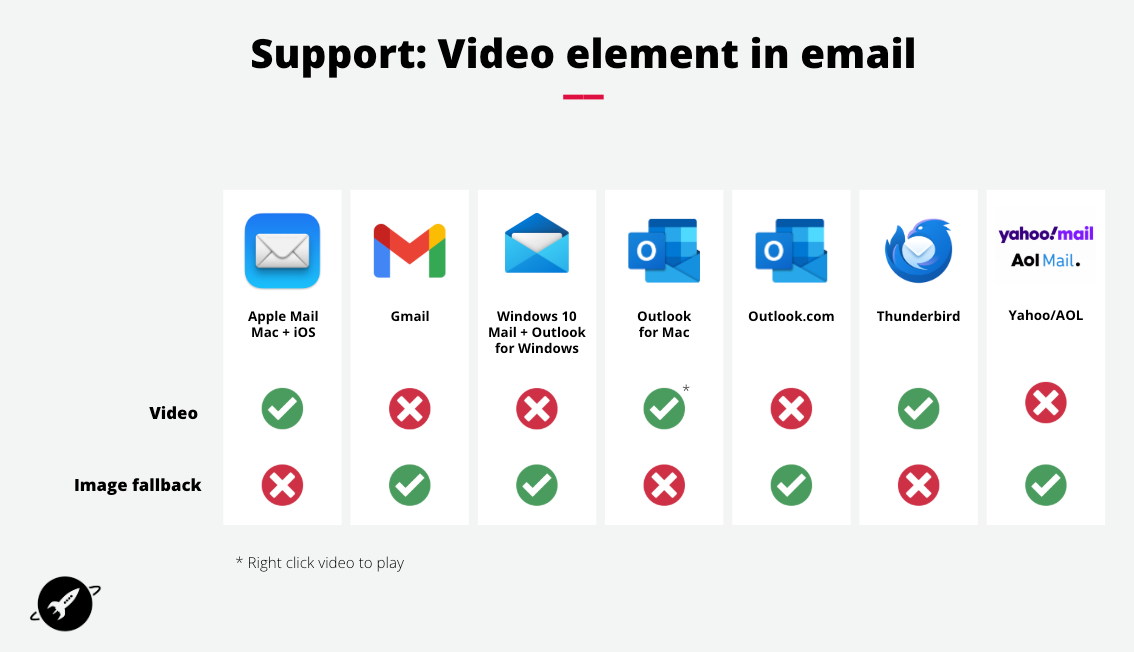
If you google how to add video to a HTML page - this is the standard way of doing it. Using the HTML5 video element. Previously it needed some CSS workarounds to ensure it worked on all email clients, but support has moved on and it is simpler than ever.
See the Pen Video element in email by Jay (@emailjay) on CodePen.
Breaking down the code above:
The <video> element is a wrapper containing the dimensions of the video - in this case 320px x 240px. If you are adding your video and you would like it to be responsive, then you can set the width to 100% and the height to auto - no crazy CSS or aspect ratio needed. To ensure the ‘fallback image below is the correct size for Outlook, you do need to include the width and height.
Following the width and height is the optional poster attribute - this is the ‘thumbnail’ your video will show with a play button automatically overlaid by the browser or email client. If you don’t include this, it will display the first frame of the video.
The following attributes are all optional:
- controls - will show the native video controls such as play/pause, sound etc.
- autoplay - will set the video to play automatically - in Apple Mail, the video will play automatically with or without sound. I’ll leave it up to you to use your judgement as to whether anyone would like that! But in browsers the only way to have a video autoplay is to have it muted.
- muted - This muted the videos sound and as stated above, is need to autoplay in most browsers.
- playsinline - The video will play in its container and not go fullscreen
- loop - The video will continuously loop
There are a couple of other attributes listed in the spec - but I have not verified support in the email clients that support the video element.
Inside the <video> element we first have the <source> which contains the link to the hosted video in the src attribute and the type - in most cases video/mp4 in the type attribute.
The second nested element is a regular <img> element - this will be the ‘fallback’ if the video element is not supported. You can set this in the same way you usually set up an img in your emails.
The Picture element
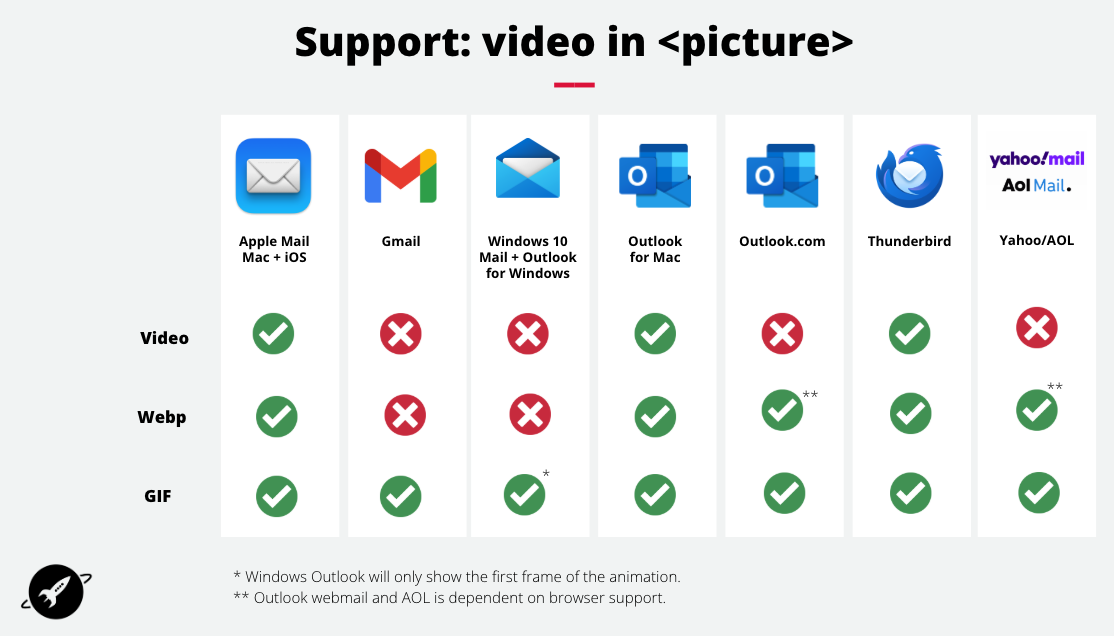
The picture element is a lesser used element in email development, but with some investigation I’ve found for this use case it is perfect. When using progressive enhancement we can use the <picture> element to show a video where supported (minus the sound), an animated webp image in most other email clients and for the only one that doesn’t support webp - Gmail - we can show an animated GIF.
Biggest caveat is that the video plays without sound - but I don’t think this is as big a deal as it may first sound (haha). When consuming videos at work or in public places almost all of the time I have it muted. I frequently watch Instagram reels and YouTube shorts on silent whilst laying in bed so I don’t wake my partner. Plus other short form media apps, such as TikTok and pretty much any social media app have realised this, with built in captions or content creators include their own captions.
See the Pen Picture element in email by Jay (@emailjay) on CodePen.
In a similar fashion to the <video> element we described above, the <picture> element wraps the content inside that you want to show to the recipient, with the rendering engine and support working through the list of <source> and <img> elements to find the best version.
Safari and Apple Mail support an mp4 in an img element and source for a picture element, with that support you can show a full colour video in Apple Mail, an animated Webp in all other email clients - which has the full range of colours and is usually a smaller file size than the equivalent GIF - then finally a 256 color GIF just for Gmail.
Yep - Outlook supports Webp - and where animated Webp or it falls back to a GIF on older Windows desktop specific Outlook apps, it shows the first frame of the animation. You could go a step further and add a Windows Outlook specific image using mso-comments if you wanted to show a completely different static image.
The last note on the <picture> element is the alt text provided in the img element will be the alt text for all the images.
Hosting video
One element that is often overlooked when planning to send videos in email is where you can upload your video and get a link to send it.
Most Email Service Providers (ESPs) don’t offer video hosting services. Then as a marketer or email developer, setting up that infrastructure can be daunting. Unfortunately you can’t embed YouTube, Vimeo or other streaming services into your email, as you can on a website. So you need to find another solution.
Video hosting for email is also a little harder than hosting images, most videos are larger than your biggest static image of 500k, generally you are looking at megabytes. The other challenge is email has a huge spike in opens and therefore video downloads within a short period of time after send - which means the servers sending your images need to scale up very quickly to stop buffering or even videos not loading at all.
Luckily you don’t need to be an expert in Amazon Web Services or to launch your own server on DigitalOcean to get video to work cost effectively. You can use a site like bunny.net and the Content Delivery Network (CDN) which for most senders will cost less than $1 a month, depending on the size of your list and the video size. Combining that fast CDN with Cloudflare R2 storage means you can store your large video files for free and optimise sending them to your subscribers anywhere in the world with the CDN.
Other options
Even though the above is simpler than it used to be, there is still a lot to consider, if you have an email developer who can help you get video working in email, if you have a design team to help create a video, webp and gif animation plus hosting it online. We’re always happy to help at ActionRocket - but there are other ways.
Gifs/Static images
Most email teams are familiar with setting up animated GIFs - the simplest way to get your video in email is to add a play button overlaid on a GIF or static image and then link to your website or video site of choice.
Third party tools
There are a lot of companies out there providing tools and teams to help you send video in email. Motion Studios such as the awesome team at Multiplied Media can help you get everything up and running.
If you have a video and just need to get it into your emails - playable.video and eyemail are where I’d start. Then blings.io and idomoo are vendors that can create personalised videos at scale and even make them interactive.
Summary
Although there is some extra work involved in getting video in email, it is technically more possible than it has been before. If you want some inspiration - check out our special Email Weekly featuring video and drop us a message if you have any questions - hello@actionrocket.co or email our head of dev - jay@actionrocket.co for any technical queries.
See more posts